Key Takeaways
- Self-service deletion needs fewer than 1,000 active devices, per Google.
- Deleted apps stay recoverable for seven days, then vanish permanently.
- Any lifetime install locks the package name against reuse.
- Fresno and San Jose teams should locate the owner login first.
- The deletion gate is a governance question, not a clicking one.
Google decides whether you can delete an app from the Google Play Store by checking three things: how many devices still run it, whether it has ever earned money, and who holds the developer account’s owner login. The clicks take two minutes. The gate in front of them is what stops most teams, and one outcome, the fate of your package name, is settled by your install history rather than by you.
Picture a Fresno wellness startup shutting down a fitness app after its founder has left. The final dialog asks for a registration receipt that sits in the founder’s old mailbox, and the owner login belongs to the same person. Nothing in the app is broken; the account is the problem.
This guide covers the eligibility rules Google publishes, the ten Play Console steps, the transaction ID format trap, the seven-day recovery window, and the access decisions that belong to whoever governs the account. It is written for the person who owns the account, not only the person who clicks.
Unpublish or Delete: What Changes on Google Play?
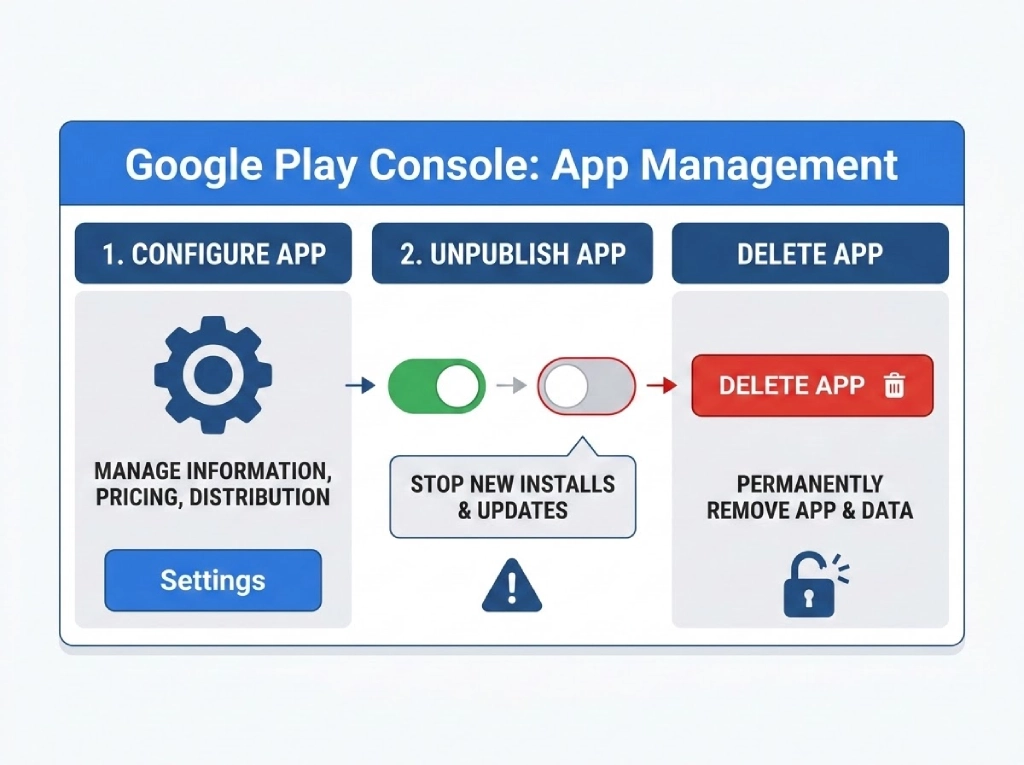
Unpublishing hides your app from new users while existing users keep using it and receiving updates, whereas deleting removes the app from Google Play, ends your access to its user data and metrics, and cannot be transferred afterward. Deletion is possible only after the app has been unpublished, so the two actions always happen in that order.
| Unpublish | Delete app | |
|---|---|---|
| What it does | Hides the listing from new users; existing users keep the app and its updates | Removes the app from Google Play and ends your access to user data and metrics |
| Reversible? | Yes, you can republish | Only within seven days; after that the app is permanently deleted |
| Package name | Stays with your app | Freed only if the app had zero lifetime installs; otherwise locked against every app |
| Transfer | App stays in your account | A deleted app cannot be transferred |
| What you need | Latest Developer Distribution Agreement accepted, no open app errors, managed publishing off | Admin access, the registration transaction ID, and an app that meets Google’s eligibility rules |
| Best for | Stopping new installs while keeping options open | Apps you will never ship again, after data is exported |
Default to unpublishing. Reserve deletion for apps whose data you have already exported and whose package name you will never need.
Who Is Allowed to Delete an App from the Google Play Store?
Only an admin who can supply the account’s registration transaction ID can request self-service deletion, and Google’s Play Console Help adds that only the account owner can complete it, so run the request from the owner’s login. The person who clicks and the person who holds that login are not always the same.
According to Google’s Delete an app page, an app qualifies for self-service deletion only when it meets every condition below. Google lists the conditions on a single page, and one miss keeps the Delete app section hidden.
- It is unpublished. Any changes in review must be resolved, and the app cannot have changes waiting in review.
- It runs on fewer than 1,000 active devices. An active device is one that was turned on at least once in the past 30 days.
- It is not rejected, blocked, or suspended. A restricted status keeps the Delete app section hidden.
- The request comes from an admin. That admin must also provide the transaction ID from the developer account’s registration.
Monetized apps follow a stricter path. Self-service deletion excludes paid apps and apps with in-app purchases or subscriptions unless the app has zero lifetime installs, and monetized apps with installs have to be removed through Google Play support.
The role requirement is where access governance bites. If an agency registered the developer account, the owner login belongs to the agency until the account changes hands, and a handover that skipped this item leaves the client unable to retire its own app. Who should hold that login is one of the decisions covered in outsourcing vs in-house development.
Healthcare teams feel the gap fastest. Picture a San Jose clinic network whose telehealth app came out of telemedicine software development work by a contractor who registered the developer account under a personal Google login. When the clinic retires the app, that personal login is the owner login Google expects.
Which Checks Prevent a Failed Deletion Request?
Run seven checks before you open the Delete app section; the first two concern people rather than software. Each one maps to a condition or warning in Google’s documentation.
- Find the owner login. Confirm who holds it, that the device used for two-step verification still works, and that you can sign in as that account.
- Locate the registration receipt. The transaction ID comes from the developer account’s registration payment, so find the receipt now rather than at the final dialog.
- Copy the exact package name. Take it from the app’s Dashboard or the app’s URL in Play Console, because a typo stops the request.
- Check the install footprint. Compare active devices with the 1,000-device limit and note whether the app was ever monetized.
- Clear review and status blockers. Resolve changes in review and any rejected, blocked, or suspended status, and pause automated uploads and any workflow automation that pushes builds.
- Export what you need. Deletion ends access to user data and metrics, so download the reports and statistics your team still uses.
- Decide about transfer. A deleted app cannot be transferred, so settle any handover to another developer account before you delete.
Treat the owner login like any privileged cloud credential, with a company-controlled mailbox, a documented recovery path, and a named backup holder, as outlined in cloud security best practices. A personal address as owner makes every retirement depend on one person’s availability.
How Do You Delete an App from the Google Play Store, Step by Step?
Deleting an app takes ten steps in Play Console, from signing in to reading the recovery deadline, and the Delete app section appears only after the app is unpublished. The labels on the screenshots match the step numbers below.
- Open Google Play Console. Go to play.google.com/console and sign in with the Google account that owns the developer account.
- Select your app. On the All apps page, click the app to open its Dashboard.
- Open Advanced settings. In the left-hand menu, expand Test and release and click Advanced settings. The App availability tab opens by default.
- Unpublish the app (if it is published). Under App availability, select Unpublished. Skip this step if the app is already unpublished.
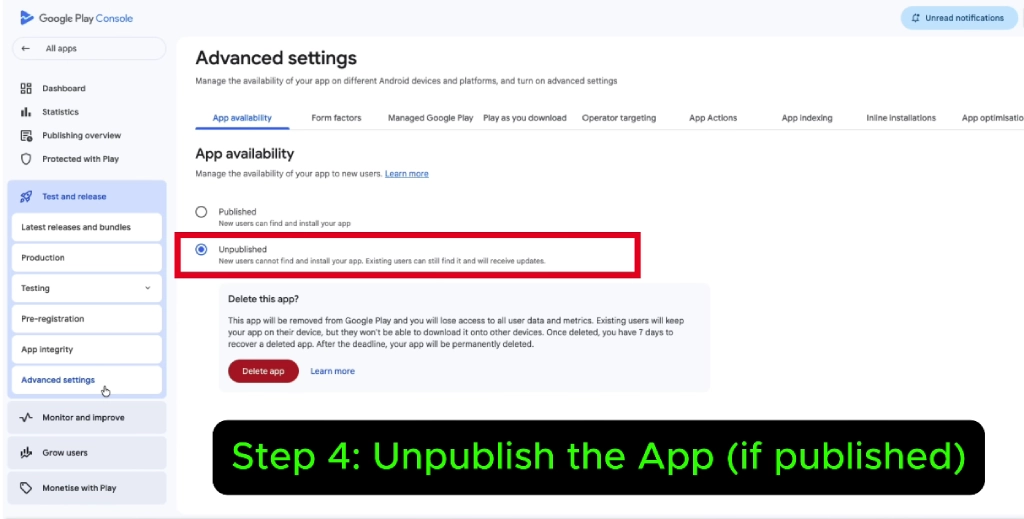
Select Unpublished under App availability in Advanced settings.
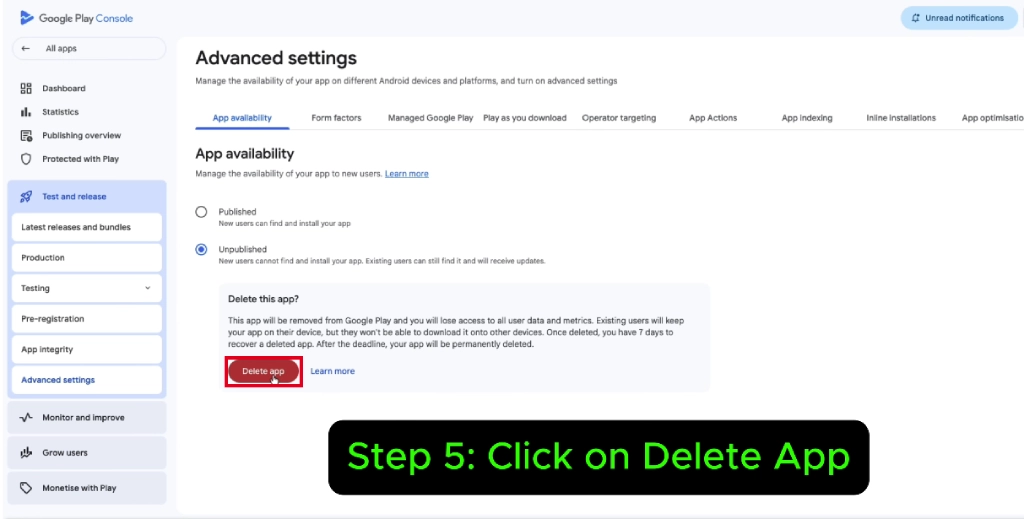
- Click Delete app. Once the app is unpublished, a “Delete this app?” box appears below. Read the notice, then click the red Delete app button.
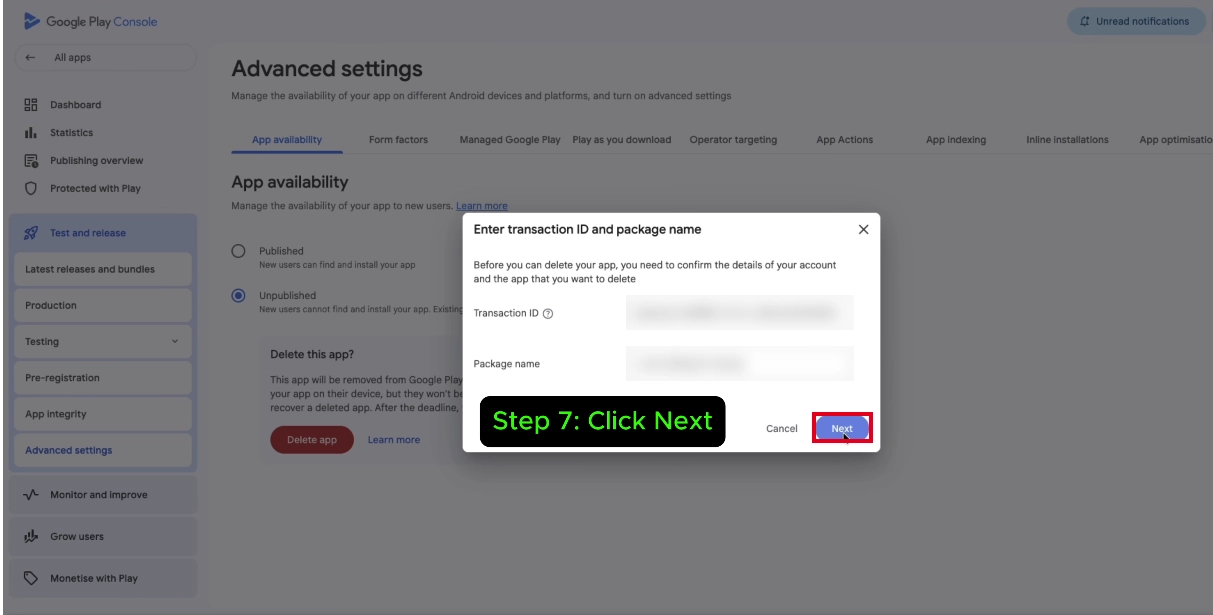
- Enter your transaction ID and package name. In the dialog titled “Enter transaction ID and package name,” fill in the trimmed registration transaction ID and the exact package name of the app you are deleting. A wrong package name stops the deletion, which is the check working as intended.
- Click Next. After both fields are filled in, click Next.
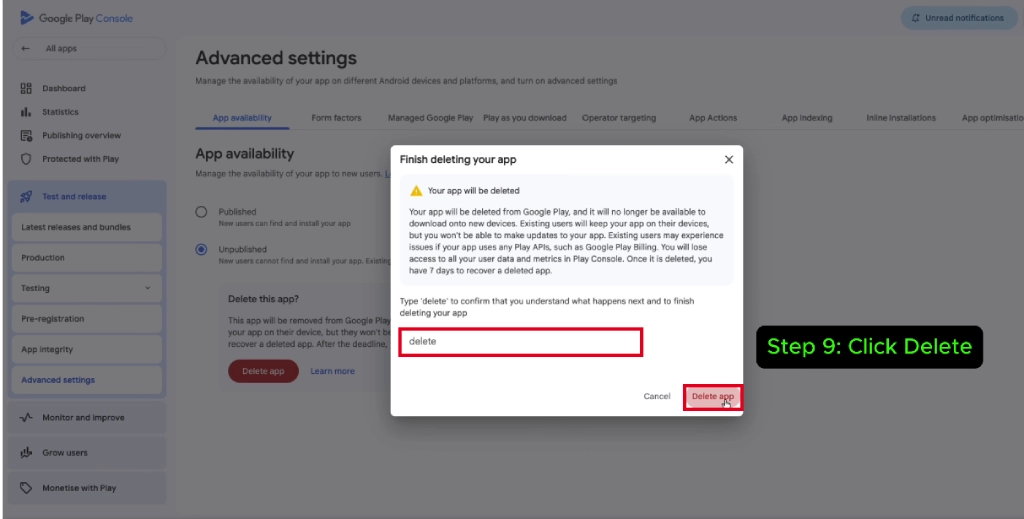
- Type “delete” to confirm. The “Finish deleting your app” window shows a final warning. Type delete in the text box to confirm that you understand what happens next.
- Click Delete app. The button becomes active once you have typed the confirmation word. Click it to finish.
- Read the recovery deadline. Advanced settings now shows how long you have left to recover the app, which is seven days from deletion.

According to Google’s guidance on updating and unpublishing, existing users can still use an unpublished app and receive updates, while new users cannot find or download it on Google Play. Unpublishing is therefore a safe first move, because nobody loses an app they already installed.
Google’s unpublish page lists the path as Test and release, then Setup, then Advanced settings, while the delete page and current screenshots go from Test and release straight to Advanced settings. Follow whichever your sidebar shows.
Google’s help page also lists three prerequisites for unpublishing: you have accepted the latest Developer Distribution Agreement, the app has no errors left to fix, such as an unfinished content rating questionnaire, and managed publishing is not active. Fix these before you start, because a blocked unpublish stops the whole sequence.
A build pipeline that keeps uploading can create changes in review, and Google does not allow deletion while any are pending. Pause automated uploads first; if release automation has grown tangled, DevOps consulting can map every job that still points at the app.
How Do You Find the Transaction ID Google Asks For?
Search the account owner’s inbox for the “Developer registration fee” receipt, copy the transaction ID from it, and trim it before you paste. The dialog asks for it in step 6, so gather it before you start.
- Sign in to the Gmail account that owns the Play Console developer account.
- Search for “Developer registration fee,” the wording Google recommends, and open the payment receipt.
- Copy the transaction ID shown in the receipt.
- If the email is gone, sign in to Google Payments with the owner’s address, open the Activity Log, search for “Google Play Developer,” and read the ID from the transaction details.
- Trim the ID before pasting by dropping its leading part, meaning the 0.G. prefix or the digits that come before the words token or Registration.
The trim step is the one teams skip. Google flags it as important, and its page lists four ID formats, some starting with 0.G. and others containing the words token or Registration.
Once you find the receipt, file it in the company records system next to the owner login details instead of leaving it in one person’s inbox. Add the file location to your release handover notes so the next owner finds it in minutes.
Can You Recover a Deleted App from Google Play?
Yes: you can recover a deleted app within seven days of deleting it, and after that deadline the app is permanently deleted. The recovery option lives on the same Advanced settings page where you deleted the app.
- Open Play Console and select the deleted app.
- Go to Test and release, then Advanced settings.
- Find the banner that reads “You have until [date] to recover this deleted app.”
- Click Recover app.
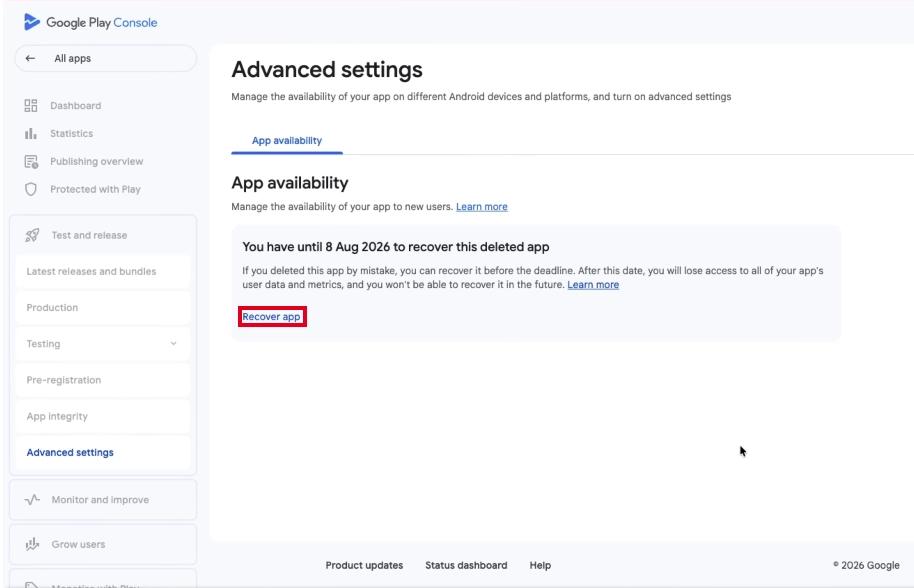
The recovery banner shows your deadline and a Recover app link.
Treat the date in the banner as a hard stop: after it, user data and metrics are gone and the app cannot be recovered. Put that date in the shared calendar of whoever owns the account.
While the app sits in recovery, navigation for it is restricted and the options to publish changes are hidden. Plan any follow-up work for after you have decided whether to recover.
What Do Users, Data, and the Package Name Look Like Afterward?
Existing users keep the app on their devices, you lose access to its user data and metrics, and the package name is either freed or locked depending on lifetime installs. Each of the three deserves a decision before step 5.
Existing users and billing
Google’s confirmation dialog states that the app will no longer download onto new devices and that you cannot make updates to it. It also warns that existing users can experience issues if the app uses Play APIs such as Google Play Billing.
If a backend built under a custom software solutions engagement still serves the app, schedule its shutdown after you have told users, because installed copies keep calling it. Return a clear end-of-support message from old app versions before the servers stop.
Data and metrics
Deletion removes your access to user data and metrics in Play Console, and the seven-day deadline makes that loss permanent. Export the reports you need before step 5 and store them with your records.
The package name
A deleted app with zero lifetime installs frees its package name for reuse by anyone, while a deleted app with any lifetime installs locks the name against every other app, including those from your own developer account. Install history alone decides which outcome applies.
Both outcomes carry a lesson. A prototype that never reached a device gives its name back, and that name is then open to other developers; a shipped app takes its name out of circulation for you as well.
Studios running fitness app development experiments in Sacramento should register prototypes under throwaway package names, because only a zero-install prototype ever gets its name back. Keep the production package name for the app you intend to ship, and treat it as permanent.
Why Can’t You See the Delete App Button? Common Blockers and Fixes
The Delete app section stays hidden when the app is still published, exceeds the active-device limit, is monetized with installs, sits in a restricted status, or has changes in review. The table below pairs each blocker with its fix.
| Problem | Likely cause | Fix |
|---|---|---|
| No Delete app section | The app is still published | Select Unpublished on the App availability tab first |
| No Delete app section on an unpublished app | 1,000 or more active devices, a restricted status, changes in review, or a monetized app with installs | Resolve the status or pending changes; for monetized apps with installs, contact Google Play support |
| Unpublish is unavailable | The Developer Distribution Agreement is unaccepted, app errors are open, or managed publishing is on | Accept the agreement, finish outstanding forms, and turn managed publishing off |
| The transaction ID is not accepted | The leading part is still attached, or the ID is from a different account | Trim the ID as Google describes and use the owner account’s registration receipt |
| The Recover app link is gone | Seven days have passed since deletion | No fix; the app is permanently deleted |
Work through status, role, and install counts in that order before you contact Google Play support. Each of these is visible in Play Console, so none requires a ticket to diagnose.
Who Holds the Keys When an App Retires?
On the Android app development projects we hand over to clients across California, the retirement step that stalls is rarely a technical one. It is that the owner login, the two-step verification device, and the registration receipt each live with a different person.
At Bitcot, our engineers write an access page into every handover: a company-controlled owner mailbox, a named backup holder, and the receipt filed with the records. Teams buying business software development should ask for that page before sign-off, and a quarterly reminder to test the owner login keeps it honest.
Whether the partner offers software development in Los Angeles or San Diego, the access page answers the first question support asks: who can prove ownership of this app? Put it in the project folder before the first release, not after the last one.

Conclusion
On Google Play, the deletion form is short and the eligibility rules are long. Unpublish first, check installs and monetization against Google’s limits, and make sure the owner login and registration receipt are in hand before anyone opens the Delete app section.
Treat the seven-day window as a safety net rather than a plan, and decide about package names, transfers, and exported data before you click. When a retirement exposes gaps in who controls your accounts or releases, a short conversation with an experienced delivery team closes them before the next handover. You can see how we package delivery in our work.
Frequently Asked Questions
What does it mean to delete an app from the Google Play Store?
Deleting an app from the Google Play Store means permanently removing it from your Play Console account after unpublishing it. Google removes it from the store; you lose access to its user data and metrics, and you have seven days to recover it. Existing users keep the copies already on their devices.
What is the difference between unpublishing and deleting an app?
Unpublishing hides the app from new users while existing users keep using it and receiving updates, whereas deleting removes it from Google Play and ends your access to its data. Deletion also cannot be transferred and locks the package name once the app has had installs. Unpublishing keeps every option open.
How do I find the transaction ID for deleting an app?
Search the account owner’s inbox for the “Developer registration fee” receipt and copy the transaction ID. If the email is gone, open the Activity Log in Google Payments and search for “Google Play Developer.” Remove the leading part of the ID, such as the 0.G. prefix, before you paste it.
How should a California health or fitness app team retire an app on Google Play?
Start with the owner login and the registration receipt, then check installs and monetization against Google’s limits. A San Jose health team with a monetized app and installs needs Google Play support, while a Sacramento fitness studio with a zero-install prototype can self-serve and free the name. Export data before the final click.
Is it worth deleting an app, or is unpublishing enough?
Unpublishing is enough when your goal is to stop new installs, because it keeps your data, metrics, and the option to republish. Delete only when the data is exported, the package name is expendable, and the app is gone for good.